The GWSDAT V3.3 Excel Add-in has a new simpler installation procedure where all files are bundled together, and you don’t need admin rights to install the software. Before attempting installation, it is recommended to read the article here for more information on Excel Trusted Locations and add-in troubleshooting. A video demonstrating end to end installation can be found here.
Installation Instructions:
1) Download https://gwsdat.net/r-portable-win/ and unzip to an Excel Trusted Location on your C drive (not a network drive). e.g. C:\Users\User.Name\AppData\Local\GWSDAT\R-Portable-Win\R-Portable-Win\library. This may take a few minutes.
2) Open Excel and install the GWSDAT add-in by choosing: "File" > "Options" > "Add-Ins" > "Go" > "Browse" and then select "GWSDAT V3.3.xlam" located in the "C:\Users\User.Name\AppData\Local\GWSDAT\R-Portable-Win\R-Portable-Win\library\GWSDAT\extdata" folder. To avoid any Excel add-in security issues please ensure that this is a trusted location.
3) A menu called "GWSDAT v3.3" will appear in the EXCEL ribbon (on right side) along the top of the EXCEL window. To get started with a basic example activate menu by clicking on “GWSDAT v3.3”and then select “Open Example” - select “Basic Example" and then select "Analyse”.
Troubleshooting:
If the “GWSDAT v3.3” menu does not appear in Excel or an add-in error occurs, then follow the steps in this article here. Most commonly, the solution here is to unblock the add-in file.
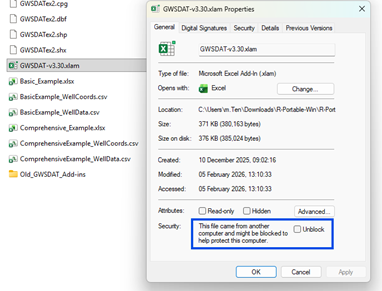
Navigate to “C:\Users\User.Name\AppData\Local\GWSDAT\R-Portable-Win\R-Portable-Win\library\GWSDAT\extdata” folder and check the file “GWSDAT V3.3.xlam” isn’t blocked by doubling click on it. If it is blocked then right click the file, select properties and check the unblock check as seen in the screenshot below.
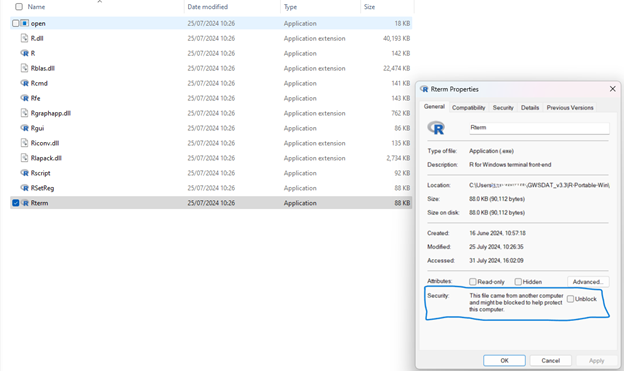
If the “GWSDAT v3.3” menu is visible, but nothing happens when you run the example then please navigate to “C:\Users\User.Name\AppData\Local\GWSDAT\R-Portable-Win\R-Portable-Win\bin\x64” and check the file “Rterm.exe” isn’t blocked. You can check it isn’t blocked by double clicking on the file. If it is blocked then right click the file, select properties and check the unblock check as seen in below screenshot
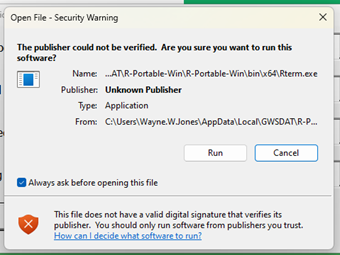
You may see a security warning – as screenshot below – click run to proceed and uncheck “Always ask before opening this file” to stop this message appearing in the future.